AI Operations
Website Stock Availability + Filter for Odoo
Hitesh S - Rootlevel
September 5, 2025
5 min read
--
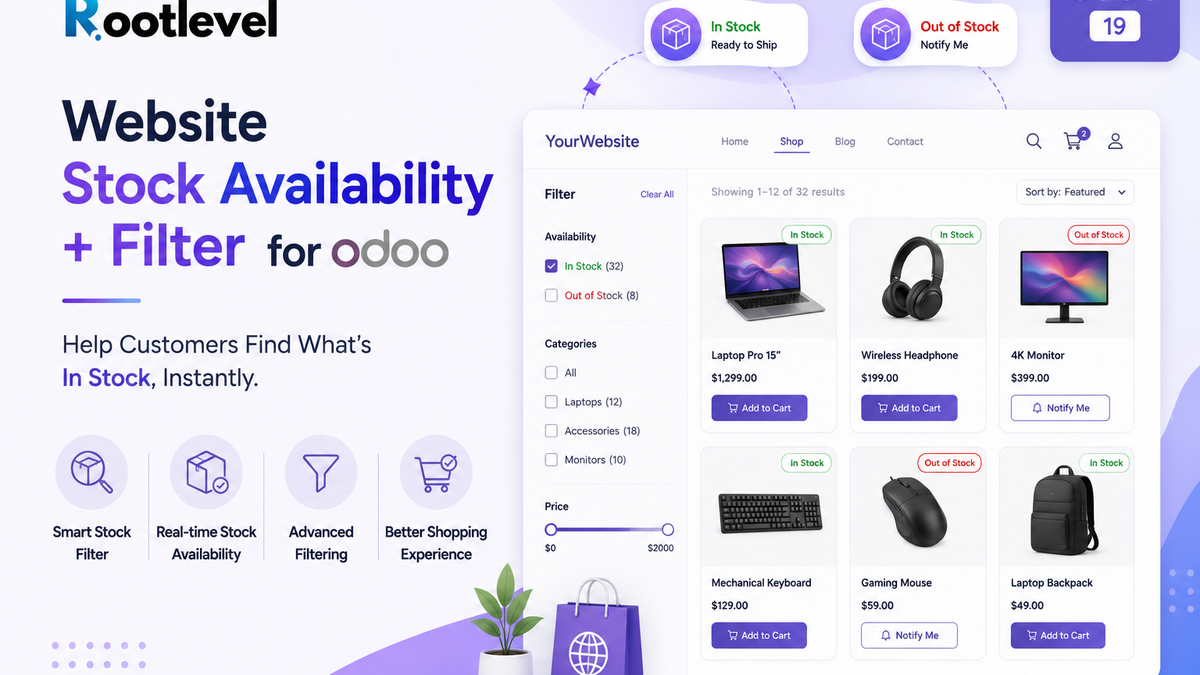
Show Stock on Odoo Website: In-Stock, Low, Out, Hurry Up!
Shoppers shouldn’t have to guess if an item is available.
Our Website Stock Availability + Filter module makes stock status immediately visible on your Odoo Website/eCommerce—right on the shop grid and product pages.
What it does?
- Clear badges:
- ✅ In Stock (green)
- ⚠️ Hurry up! X left (yellow, based on your low-stock limit)
- ⛔ Out of Stock (red)
- Low-stock limits you control:
- Set a global threshold.
- Override per product (product setting wins over global).
- Set limit to 0 if you don’t want the “Hurry up!” message.
- Shop filter: Customers can filter by In Stock / Low Stock / Out of Stock in one click.
Smart behavior (no confusion for special products)
- Combo products: show only In Stock or Out of Stock (no “Hurry up” badge). Availability is based on the minimum stock among non-service items in the bundle.
- Service products: always available → no badge shown.
Why it matters?
- Reduces support tickets (“Is this available?”)
- Cuts cart abandonment caused by uncertainty
- Speeds up decisions and improves conversion rate
- Creates trust with honest availability messaging
How it looks to the buyer?
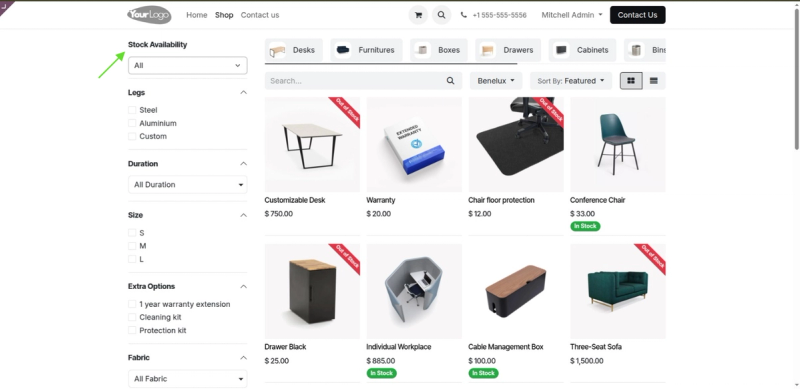
On the category/shop page, each product card displays its badge. A simple Availability dropdown lets visitors see only the items they want—e.g., filter to In Stock to buy faster or Low Stock to grab last pieces.
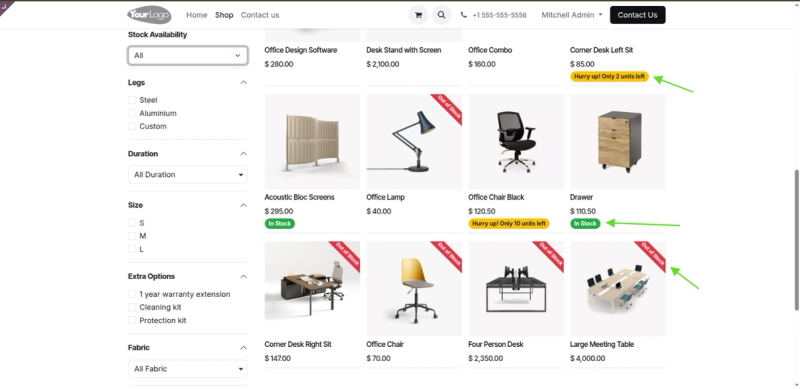
- Displays "In Stock" with a green badge when the quantity is above the limit.
- Displays "Hurry up! X quantity left" with a yellow badge when the quantity is below the limit.
- Displays "Out of Stock" with a red badge when the quantity reaches 0. 👇🏻
- Provides a dropdown filter for stock availability on the website. 👇🏻
Quick setup
- Install website_stock_availability_filter_rl 👉🏻 Website Stock Availability Filter Rootlevel
- Go to Website › Configuration and set your Global Low-Stock Threshold.
- (Optional) Open any Product Template to set a product-wise threshold.
- That’s it—badges and the shop filter appear automatically.