How to Automate Barcode Generation in Odoo with the Product Barcode Generator Module
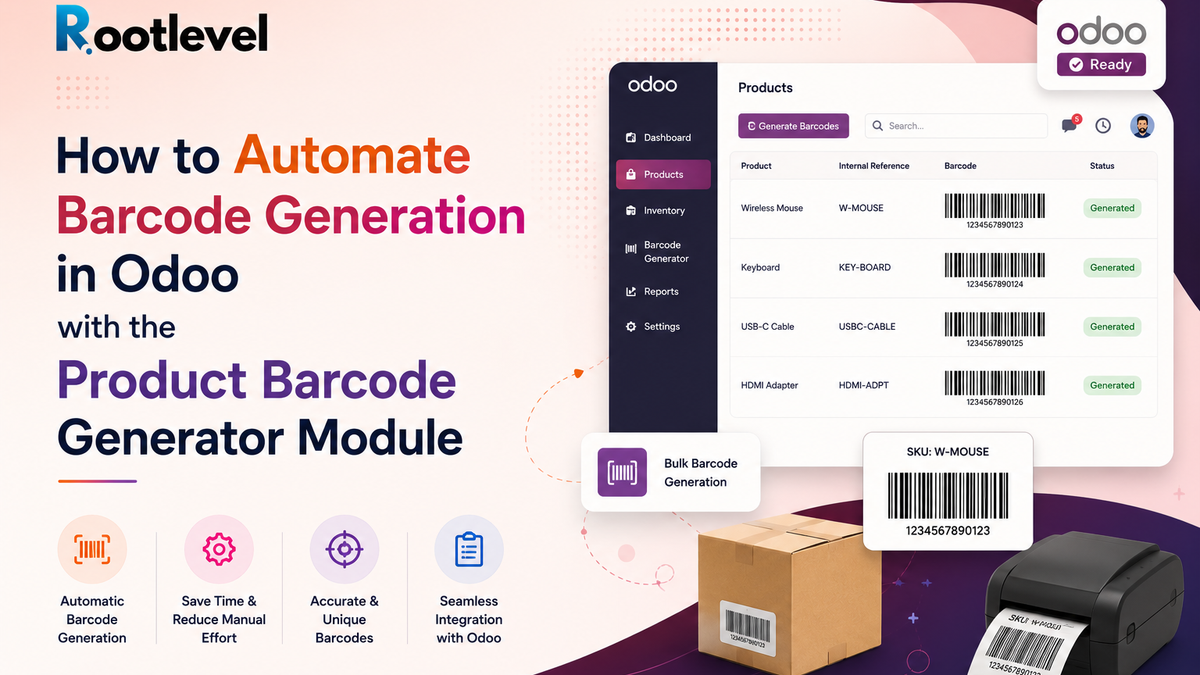
Generate barcodes instantly for Odoo products and variants — save time, cut errors, and streamline inventory.
Introduction
In today’s fast-paced business world, efficient inventory management is essential. Barcodes simplify tracking, scanning, and product management across warehouses, POS, and shipping. But creating them manually for each product or variant is slow and error-prone.
The Product Barcode Generator by Rootlevel for Odoo automates this process, making barcode creation seamless and scalable.
Why Barcode Generation Matters in ERP / Inventory
- Speeds up product scanning in warehouse, POS, shipping
- Reduces human error from manual input
- Maintains consistency across product templates and variants
- Facilitates reporting, compliance (e.g. ISBN, ISSN), and integration with external systems
Challenges Without Barcode Automation
- Time-consuming: each SKU needs manual barcode
- Risk of duplicates or invalid barcodes
- Updating or overwriting existing barcodes manually is tedious
- Difficulty in supporting multiple barcode standards
Introducing the Product Barcode Generator (Rootlevel)
How it works (Workflow / Usage)
- Assign the user the “Product Barcode Generator User” group
- Navigate to Inventory → Products
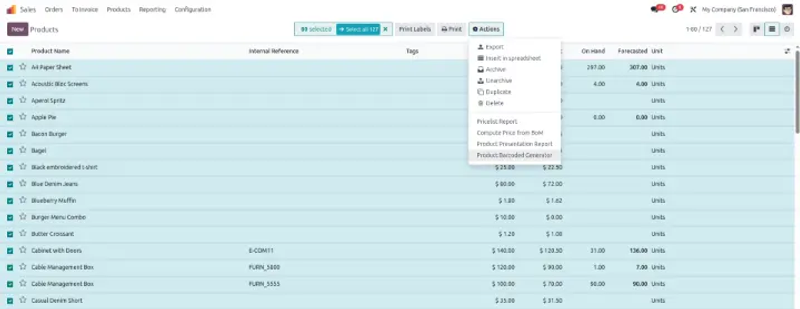
- Select one or multiple products using checkboxes
- From the Action menu, click “Product Barcode Generator”
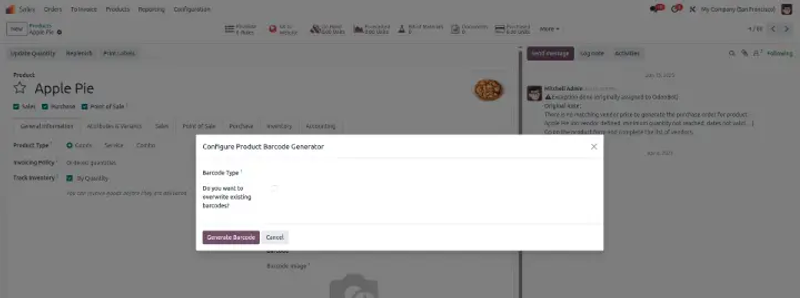
- In the wizard, choose barcode type and whether to overwrite existing values
- Apply — barcodes are generated & saved
- The barcode image appears in the product form and can be used in reports or label
- Missing barcode images can be generated from 'Barcode Missing Image Generator' Menu in both form and list views
Technical Requirements & Dependencies
- Python dependencies: python-barcode, treepoem, Pillow
- Ghostscript installed on server (for rendering)
- - Ubuntu/Debian: sudo apt install ghostscript
- - macOS: brew install ghostscript
- Works in Odoo Community, Enterprise, and Odoo.sh environments
Key Features & Capabilities
- Supports 8+ barcode formats including EAN-13, UPC-A, Code 128, ISBN, ISSN, and more
- Auto-generate barcodes (random or seeded) with checksum support for EAN
- Works on both product templates and product variants One-click overwrite of existing barcodes
- Barcode images are displayed right in the product form view
- Barcode images provided as base64 PNG, usable in PDF report templates or custom labels
- Adjustable font scaling and readable text under the barcode
- Error handling, logs, and permission controls built in
Barcode Types used in module:1. EAN-13Usage: Retail products worldwide,Digits: 13 numeric,Note: Required for most retail/point-of-sale systems2. UPC-AUsage: Retail products (mainly in the U.S. & Canada),Digits: 12 numeric3. Code 128/GS1-128Usage: Logistics, shipping, internal tracking,Note: Compact and versatile, used in GS1-128 format4. Code 39Usage: Inventory, defense, automotive, Note: Easy to use, but less dense than Code 1285. CodabarUsage: Libraries, blood banks, logistics, Note: Simple and tolerant to printing issues6. EAN-8Usage: Small packaging, Digits: 8 numeric7. ISBN / ISSNUsage: Books (ISBN) and magazines (ISSN), Digits: 13 numeric (formatted with EAN-13), Note: Follows EAN-13 with a prefix like 978 or 979
Use Cases & Business Benefits
- Retail & eCommerce businesses: auto-generate barcodes for new SKUs, variants
- Publishing / booksellers: ISBN / ISSN barcode support
- Wholesale / distribution: ensure each product and variant has a unique scannable code
- Manufacturing / assembly: integrate barcode printing in production / packing
- Improves scanning speed, accuracy, and eliminates manual overhead
- Helps compliance when exporting products with barcode standards
Screenshots
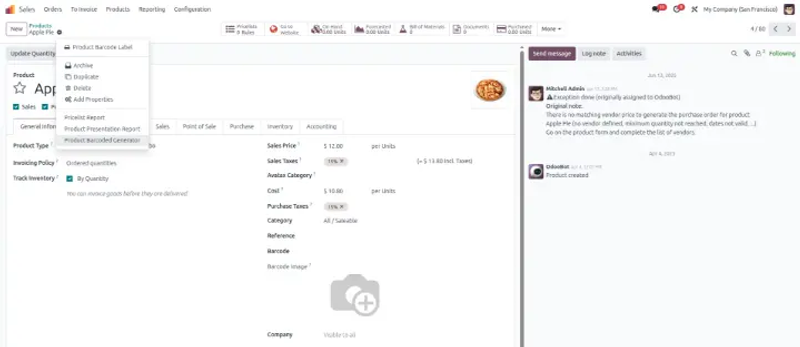
In the Product view, click the Action button and select the "Product Barcode Generator" option from the list.
Provide the necessary inputs in the wizard based on your reporting needs.
Fill in the required fields and click Print Report to download your report instantly.
Best Practices & Tips
Always back up existing barcodes before overwriting
- Use seeded barcode generation if you want predictability
- Choose barcode formats suitable for your region / client (e.g. EAN-13 in many markets)
- Test a few products first before bulk applying
- Use readable font sizes and maintain margin / quiet zone in labels
- Monitor logs and errors — some barcodes might not generate if invalid parameter
Automating barcode generation in Odoo saves time, avoids errors, and makes inventory operations smoother. The Product Barcode Generator (Rootlevel) module is a powerful tool to achieve this. Ready to get started?